Constantly reaching for your mouse to start voice dictation breaks your flow and slows you down. Whether you're writing emails, taking notes, or drafting documents, fumbling through menus to activate dictation interrupts your thoughts and reduces productivity.
The solution is simple: keyboard shortcuts. With the right hotkeys configured, you can start dictating anywhere on your Mac with a quick key combination. This guide shows you exactly how to set up voice dictation shortcuts for both Mac's built-in dictation and third-party apps like Voicci.
You'll learn the step-by-step process, discover the best shortcut combinations, and understand how to troubleshoot common issues. By the end, you'll have voice dictation at your fingertips—literally.
Setting Up Mac's Built-in Dictation Shortcuts
Mac comes with built-in voice dictation that you can activate through keyboard shortcuts. Here's how to configure it:
Enable Enhanced Dictation
First, you need to enable dictation in System Settings:
- Open System Settings (or System Preferences on older macOS versions)
- Click Keyboard in the sidebar
- Select Dictation from the options
- Turn on Dictation if it's not already enabled
- Choose Enhanced Dictation for offline functionality
Configure the Dictation Shortcut
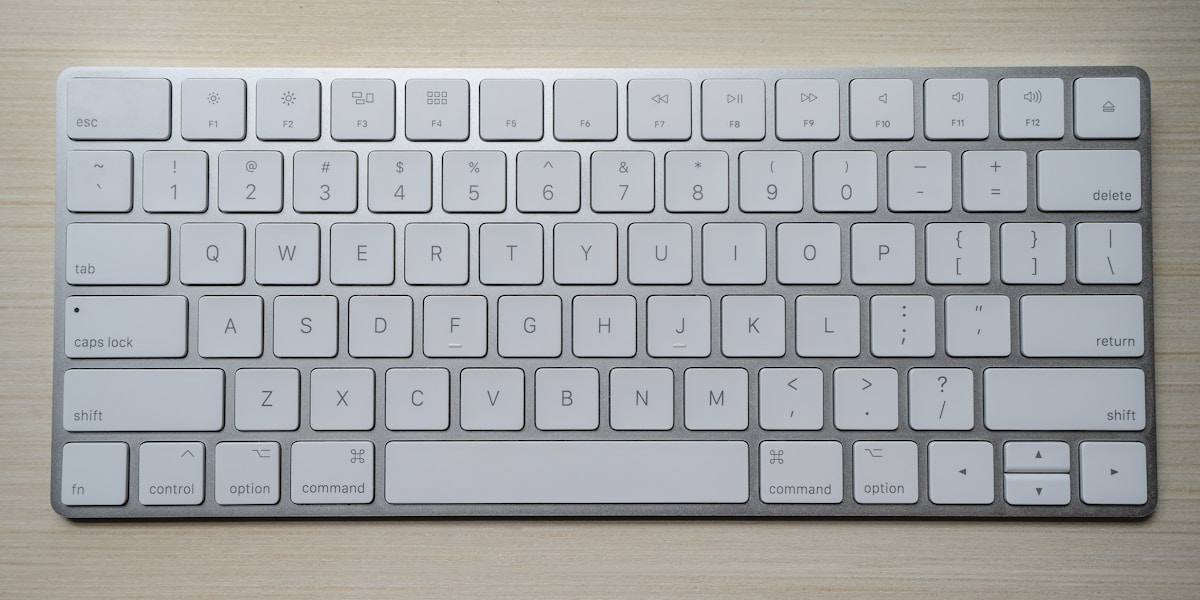
By default, Mac uses the Fn key pressed twice to start dictation. You can customize this:
- In the same Dictation settings, look for Shortcut
- Click the dropdown menu next to it
- Choose from preset options like "Press Fn Key Twice" or "Press Either Command Key Twice"
- Select Customize to create your own key combination
Popular custom shortcuts include Command+Shift+D or Control+Option+Space. Choose something that doesn't conflict with existing shortcuts in your frequently used apps.
Test Your Setup
Open any text field and press your chosen shortcut. You should see a microphone icon appear, indicating dictation is active. Speak clearly and press the shortcut again or press Enter to stop dictation.
Third-Party Voice Dictation Apps and Shortcuts
While Mac's built-in dictation works for basic needs, third-party apps like Voicci offer superior accuracy and features. Here's how to set up shortcuts for popular voice dictation applications:
Voicci Setup
Voicci uses OpenAI's Whisper AI locally on your Mac for private, accurate transcription:
- Download and install Voicci from the Mac App Store
- Launch Voicci—it appears in your menu bar
- Click the Voicci icon and select Preferences
- In the Hotkey section, click the field and press your desired key combination
- Popular choices include Command+Shift+V or Control+Option+V
- Enable Global hotkey to use the shortcut in any application
Other Popular Apps
Dragon Professional (discontinued but still used): Configure shortcuts in Preferences > Commands > Global Commands.
Superwhisper: Similar to Voicci, set global hotkeys in the app's preferences panel.
Whisper Desktop: Check the settings menu for hotkey configuration options.
Avoiding Shortcut Conflicts
When using multiple dictation apps, ensure each uses a unique shortcut. Test all combinations to verify they work without interfering with each other or system shortcuts.
Quick Setup Tip
Start with Mac's built-in Fn+Fn shortcut to test dictation, then customize once you're comfortable with the workflow. This prevents accidentally triggering dictation while you're learning.
Advanced Shortcut Configurations
Power users can create more sophisticated dictation workflows using advanced shortcut techniques:
Application-Specific Shortcuts
Set different shortcuts for different contexts:
- Email dictation: Command+Shift+E (only active in Mail or Outlook)
- Document writing: Command+Shift+W (for Pages, Word, or Google Docs)
- Note-taking: Command+Shift+N (for Notes, Obsidian, or Notion)
Configure these in System Settings > Keyboard > Keyboard Shortcuts > App Shortcuts.
Multiple Language Setup
If you dictate in multiple languages:
- Set up separate shortcuts for each language
- Use descriptive combinations like Command+Shift+E for English, Command+Shift+S for Spanish
- Configure language-specific models in apps that support multiple languages
Push-to-Talk vs Toggle Mode
Choose your activation style:
- Toggle mode: Press once to start, press again to stop
- Push-to-talk: Hold the shortcut while speaking, release to stop
- Voice activation: Say a wake word to start dictation
Most apps default to toggle mode, but some offer push-to-talk for better control over when dictation starts and stops.
Best Practices for Dictation Shortcuts
Follow these guidelines to create an efficient dictation workflow:
Choose Memorable Combinations
Select shortcuts that make logical sense:
- Use "D" for dictation: Command+Shift+D
- Use "V" for voice: Command+Option+V
- Use space bar combinations: Control+Space
Avoid complex four-key combinations that are hard to remember or execute quickly.
Consider Your Workflow
Think about when you dictate most often:
- Frequent dictation: Use simple, fast shortcuts like Fn+Fn or Command+Space
- Occasional use: More complex shortcuts are acceptable
- Presentation mode: Consider shortcuts you can execute discretely
Test in Real Scenarios
Don't just test shortcuts in isolation. Try them while:
- Typing in different applications
- Using external keyboards
- Working with multiple monitors
- Using your Mac in clamshell mode
Backup Options
Always have a backup way to activate dictation:
- Menu bar icons for quick access
- Dock shortcuts for visual activation
- Touch Bar shortcuts on supported MacBooks
This ensures you can still dictate if your primary shortcut stops working or conflicts with another app.
Shortcut Safety
Always test new shortcuts in a safe environment first. Open a text editor or note-taking app before trying your shortcut to avoid accidentally dictating in the wrong place.
Troubleshooting Common Shortcut Issues
When dictation shortcuts don't work as expected, try these solutions:
Shortcut Not Responding
If your shortcut doesn't activate dictation:
- Check if another app is using the same shortcut
- Verify dictation is enabled in System Settings
- Restart the dictation app or service
- Try a different key combination temporarily
Conflicts with Other Apps
Popular shortcuts often conflict with existing software:
- Command+Shift+D: Often used by design apps
- Command+Space: Reserved for Spotlight search
- Function keys: May conflict with system features
Use System Settings > Keyboard > Keyboard Shortcuts to see all active shortcuts and identify conflicts.
Microphone Permission Issues
If dictation starts but doesn't hear you:
- Open System Settings > Privacy & Security > Microphone
- Ensure your dictation app has microphone access
- Check your microphone input level in Sound settings
- Test with a different microphone or headset
Performance Problems
If dictation is slow to start or process:
- Close unnecessary applications to free up RAM
- Check if your Mac is running background tasks
- For local AI apps like Voicci, ensure sufficient storage space
- Restart your Mac to clear memory issues
Language Recognition Issues
If dictation doesn't recognize your speech accurately:
- Verify the correct language is selected
- Check your microphone positioning and quality
- Speak more slowly and clearly
- Train the system with your voice if the app supports it
Comparing Dictation Apps for Mac
Different dictation apps offer varying shortcut capabilities and features:
Mac Built-in Dictation
Pros:
- No additional software required
- Integrated with all Mac apps
- Free with macOS
Cons:
- Limited accuracy compared to modern AI
- Requires internet for best performance
- Basic customization options
Voicci
Pros:
- Superior accuracy with Whisper AI
- Completely offline and private
- Universal text insertion anywhere
- One-time purchase, no subscriptions
- Customizable global hotkeys
Cons:
- Requires separate app installation
- Uses more system resources for AI processing
Cloud-Based Services
Pros:
- Often very accurate
- Regular model updates
- Multi-device sync
Cons:
- Requires internet connection
- Privacy concerns with cloud processing
- Usually subscription-based
- May have usage limits
For most users, local solutions like Voicci offer the best balance of accuracy, privacy, and convenience for daily dictation tasks.
Frequently Asked Questions
What's the default dictation shortcut on Mac?
The default shortcut is pressing the Fn (Function) key twice quickly. You can change this in System Settings > Keyboard > Dictation > Shortcut.Can I use different shortcuts for different languages?
Yes, you can set up application-specific shortcuts in System Settings > Keyboard > Keyboard Shortcuts > App Shortcuts, or use apps like Voicci that support multiple language models with different hotkeys.Why isn't my dictation shortcut working?
Common causes include shortcut conflicts with other apps, disabled microphone permissions, or dictation being turned off in System Settings. Check these settings first, then try a different key combination.Do third-party dictation apps work better than Mac's built-in option?
Modern AI-powered apps like Voicci typically offer better accuracy than Mac's built-in dictation, especially for technical terms, proper nouns, and longer passages. They also often provide more customization options.Can I use voice dictation shortcuts with external keyboards?
Yes, dictation shortcuts work with external keyboards. However, if your external keyboard lacks a Fn key, you'll need to set up alternative shortcuts using Command, Option, Control, or Shift combinations.Ready for Better Voice Dictation?
While Mac's built-in dictation works for basic needs, Voicci offers superior accuracy with OpenAI's Whisper AI running locally on your Mac. Get private, offline transcription that's more accurate than built-in options, with customizable shortcuts that work anywhere on your system.
Try Voicci Free